How to Disable Autoplay

This time on All computer tips I will tell you how to disable Autoplay menu. As you know, disable autoplay menu is necessary to prevent your PC from dangerous virus which is maybe come from any portable media you connected to PC (it can be flashdisk,CD,and other data storage media).And sometimes,Autorun menu disturb user by its prompt window which takes some time to appear. Disable Autoplay menu is not that difficult,i will tell you the procedure of disable autoplay menu step-by-step.

::. Procedure

So,let's start disable your Autoplay menu:

  1. Click on start-run-->and type gpedit.msc ;click  OK
  2. Once,you'll see like this: image
  3. Next,you have to focus on the left side panel,locate to this: Local Computer Policy/Computer Configuration/Administrative Templates/Systems.image
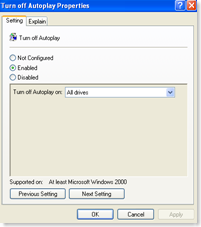
  4. Here in right side panel,find this object:Turn Off Autoplayimage
  5. Double click on it,check Enabled,
  6. Turn off Autoplay on:All drive
  7. Congrats!You're just disable your Autoplay menu

For now and ever,the autoplay menu on your computer has been disabled,so if you try to connect any portable media to your PC,the Autoplay menu won't disturb you anymore.

All computer tips: www.ezpctips.blogspot.com

It would be nice if you leave your comment below.Thanks.

Technorati Tags: ,
Readmore,..

Recuva 1.24 | Easily restore your missing files

image Hey guys,this time ezpctips come up with review plus free download of Recuva 1.24. Recuva 1.24 is the best solution for searching your missing file on your computer,Recuva 1.24 can be easily used to search and restore your missing file on computer or any portable media.


::. Screenshot

Recuva 1.24 is a freeware by piriform Ltd, A software that is able to recover missing or deleted files or data. The good score of this software is its friendly user-interface.Though,Recuva 1.24 also available on Advanced mode,which provide:preview box,header,and 'info' contains all information of the missing or deleted files.So,in the info box, we can see where is the file was located ago,the condition of the file;there are 3 condition:Excellent,Poor,and Unrecoverable.

The setting mode(option mode) on Recuva is pretty easy. On the option mode, we can choose the language appeared,set what type of the program look liked(List View,Tree View,or Thumbnails view),and for intermediate, Recuva provides Advanced Setting mode, on it they can configure the secure overwriting mode(Simple,DOD,NSA,or Gutmann).

::. Download

You can easily and freely download the installer of Recuva 1.24 on this link: Recuva 1.24


After downloading Recuva, it will be very appreciated,if you leave your comment of this program(Recuva.1.24) below on comment box,thank you: All computer tips

Readmore,..

How to Change Facebook Profile Layout

Hi guys,today i come up with this article:how to change facebook profile layout.

These days,i feel bored with my default layout on my facebook profile. Maybe some of you feel the same way with me. Due to it, i share you how to change facebook profile layout.

To change your facebook profile layout, first you have to go to pagerage.com

Click on ‘Add PageRage Layout to Facebook

clip_image002

And then choose one of those layouts you want to apply on your facebook profile.

When you click on Select, you’ll see a message at the top saying that you need to install Yontoo Layers. Yup,go ahead and install Yontoo layers.

When you are going to install yontoo layers,you have to choose one of browser u currently use.(until i write this content,yontoo only supports IE and firefox browser,any other browser will be supported soon.)

clip_image002[5]

enter in your facebook login details when you are asked to.

When you finished,go back to pagerage.com and choose any new layout you want to apply on your facebook profile.


Note: Yontoo layer is just a virtual layer on your browser screen,it means, other user who don't have installed this layers before,they won't see your new applied layout. Because it doesn't trully change your Facebook page,but only add virtual layers on top of current page site(it works like Greasemonkey).


Hope you enjoy!and feel free to comment this post.Thank you!


Readmore,..

Faster your Startup!

Fed up with your time-consuming PC-startup times? Well, previously in my blog i have review about startup blaster, a software which can optimize your startup time, But, I got another simple tips that can optimize your PC startup time, this time i tell you how to do it using msconfig :

First, click Start Button,and click Run,(you can use Windows key+R for instant)
image

Next, on the textbox appeared, type msconfig.

Then, you'll see a medium-sized dialogue box, this called msconfig box, the 'room' which your startup setting is controlled.

you should select Startup Tab on the top-right pane;to faster your startup time,you should click the 'Disable All' Button
image

And you'll see that the Startup item on the list are all unchecked, it means that no program will be executed in your next PC startup,but some system file must be executed when startup,usually antivirus system.

Click OK

Restart your computer to see the result.


Readmore,..

Speed Up your Firefox PartII

Today on ezpctips , I will give you the second article about how to significantly speed up your Firefox. If in the previous article I had taught you about how to speed up your Firefox PartI (haven't read? click here), today, I will give you another tips, that will significantly speed up your firefox.

Okay, no need to waste your time..
Do you know what is extension and 'plug in' on web browser jargons? well, based on webopedia.com plug in is A hardware or software module that adds a specific feature or service to a larger system. The idea is that the new component simply plugs in to the existing system. So, you can see clearly that plug in working with the system of your web browser. It means : more plug in or extension as well, more harder for your system to open a page on your web browser. So it is necessary to limit the number of plug in and extension you running on firefox.

To disable some junk extension and plug in on your firefox;
On firefox toolbar, click Tools or you can use Alt+T shortcut to open it, and then select Add-ons.
Once, you'll see a box that contain a numerous plugins and extension running on your sy
stem, To disable some of them, select one of the plugins, and click disable button, My tips is just disable some plugins or extension which you rare use or maybe you don't knowwhat is it for.
After you done, restart your firefox or just simply close your firefox and open it.

You will feel the difference after you applicate this tips. Thanks..

More firefox,internet tips, or computer tips click here.
Readmore,..